<?xml version="1.0" encoding="UTF-8"?>
<rss version="2.0"
	xmlns:content="http://purl.org/rss/1.0/modules/content/"
	xmlns:wfw="http://wellformedweb.org/CommentAPI/"
	xmlns:dc="http://purl.org/dc/elements/1.1/"
	xmlns:atom="http://www.w3.org/2005/Atom"
	xmlns:sy="http://purl.org/rss/1.0/modules/syndication/"
	xmlns:slash="http://purl.org/rss/1.0/modules/slash/"
	>

<channel>
	<title>One Scrappy Site</title>
	<atom:link href="http://www.onescrappysite.com/feed/" rel="self" type="application/rss+xml" />
	<link>http://www.onescrappysite.com</link>
	<description>Everything you need to know about scrapbooking</description>
	<lastBuildDate>Tue, 21 Feb 2012 08:17:00 +0000</lastBuildDate>
	<language>en</language>
	<sy:updatePeriod>hourly</sy:updatePeriod>
	<sy:updateFrequency>1</sy:updateFrequency>
	<generator>http://wordpress.org/?v=3.3.1</generator>
		<item>
		<title>Scrapbooking Inspiration</title>
		<link>http://www.onescrappysite.com/scrapbooking-inspiration/</link>
		<comments>http://www.onescrappysite.com/scrapbooking-inspiration/#comments</comments>
		<pubDate>Sun, 21 Nov 2010 12:57:32 +0000</pubDate>
		<dc:creator>admin</dc:creator>
				<category><![CDATA[Tips and Guides]]></category>
		<category><![CDATA[creativity]]></category>
		<category><![CDATA[inspiration]]></category>

		<guid isPermaLink="false">http://www.onescrappysite.com/?p=112</guid>
		<description><![CDATA[Here are a few tips to encourage your creative juices to flow and to kickstart your scrapbooking inspiration!]]></description>
			<content:encoded><![CDATA[<p>Here are a few tips to encourage your creative juices to flow and to kickstart your scrapbooking inspiration!</p>
<h2>The Soundtrack Of Your Life</h2>
<p>Choose your favourite music album or an album that you feel inspires you or connects with any aspect of your life. You can then take your 10 favourite tracks and scrap them as they relate to your life. You can use the title or lyrics for inspiration, or even the way the song makes you feel. This exercise is a good way for you to tell people who you are and what you feel.</p>
<h2>Creative Journal</h2>
<p>A good writing prompt for your journal is using the first time you experience something. Your first holiday, your first kiss, your first day at college, your first boy/girlfriend, your first child. On the days when you need a prompt for your journal writing turn to your list and write about one of the firsts that is relevant to you.</p>
<p>You can also write about the last time you did something. The last time you saw a loved one, the last time you visited a special place, the last book you read… This is a great way to delve into your memories and have fun writing about the last time you experienced a particular event or emotion.</p>
<p>You don&#8217;t even need pictures to scrap these firsts/lasts!  Just write. Describe the time, place, feelings, thoughts, and decorate the page however you like, and you&#8217;re done!  If you feel you must have a photo, you can always take one!  Or have someone else take one.  Or use a photo of you, taken around the same age.  No one&#8217;s going to care if it wasn&#8217;t taken at that precise moment: the photo just needs to give a visual clue or trigger to give an idea of what you were like at that time.</p>
<h2>Photographic Interview</h2>
<p>This idea would make a great <em>Book Of Me</em> layout! Make a list of 20 questions and answer them by taking a photograph. This is a fantastic way to let others get to know you through images instead of words. </p>
]]></content:encoded>
			<wfw:commentRss>http://www.onescrappysite.com/scrapbooking-inspiration/feed/</wfw:commentRss>
		<slash:comments>0</slash:comments>
		</item>
		<item>
		<title>What Fonts Have I Got On My Computer?</title>
		<link>http://www.onescrappysite.com/what-fonts-have-i-got-on-my-computer/</link>
		<comments>http://www.onescrappysite.com/what-fonts-have-i-got-on-my-computer/#comments</comments>
		<pubDate>Sun, 07 Nov 2010 16:53:07 +0000</pubDate>
		<dc:creator>admin</dc:creator>
				<category><![CDATA[Tips and Guides]]></category>
		<category><![CDATA[fonts]]></category>

		<guid isPermaLink="false">http://www.onescrappysite.com/?p=101</guid>
		<description><![CDATA[A question that many scrapbookers ask is "what fonts do I have installed on my computer?". With the release of Windows 7, font management has changed again. To see all the fonts you have, click the Start button and then select Control Panel > Appearance and Personalisation.]]></description>
			<content:encoded><![CDATA[<p>A question that many scrapbookers ask is &#8220;<em>what fonts do I have installed on my computer</em>?&#8221;. With the release of Windows 7, font management has changed again.</p>
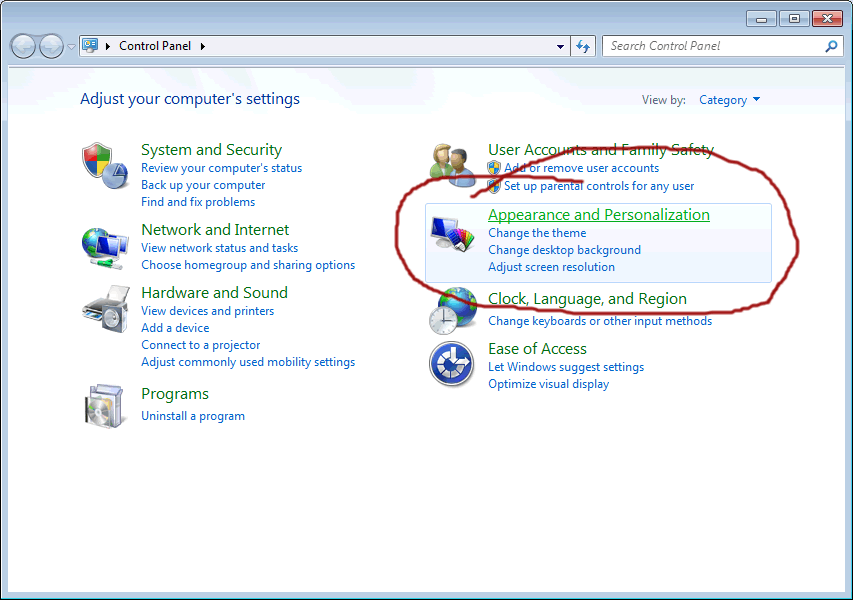
<p>To see all the fonts you have, click the Start button and then select Control Panel &gt; Appearance and Personalisation.</p>
<div id="attachment_102" class="wp-caption aligncenter" style="width: 310px"><a href="http://www.onescrappysite.com/wp-content/uploads/2010/11/appearance-and-personalisation1.gif"><img class="size-medium wp-image-102" title="Appearance and Personalisation In Windows 7" src="http://www.onescrappysite.com/wp-content/uploads/2010/11/appearance-and-personalisation1-300x211.gif" alt="Appearance and Personalisation In Windows 7" width="300" height="211" /></a><p class="wp-caption-text">Click to enlarge</p></div>
<p>When the <em>Appearance and Personalisation</em> window opens, click on <em>Fonts</em> at the bottom.</p>
<div id="attachment_103" class="wp-caption aligncenter" style="width: 310px"><a href="http://www.onescrappysite.com/wp-content/uploads/2010/11/fonts-in-windows-7.gif"><img class="size-medium wp-image-103" title="Fonts In Windows 7" src="http://www.onescrappysite.com/wp-content/uploads/2010/11/fonts-in-windows-7-300x211.gif" alt="Fonts In Windows 7" width="300" height="211" /></a><p class="wp-caption-text">Click to enlarge</p></div>
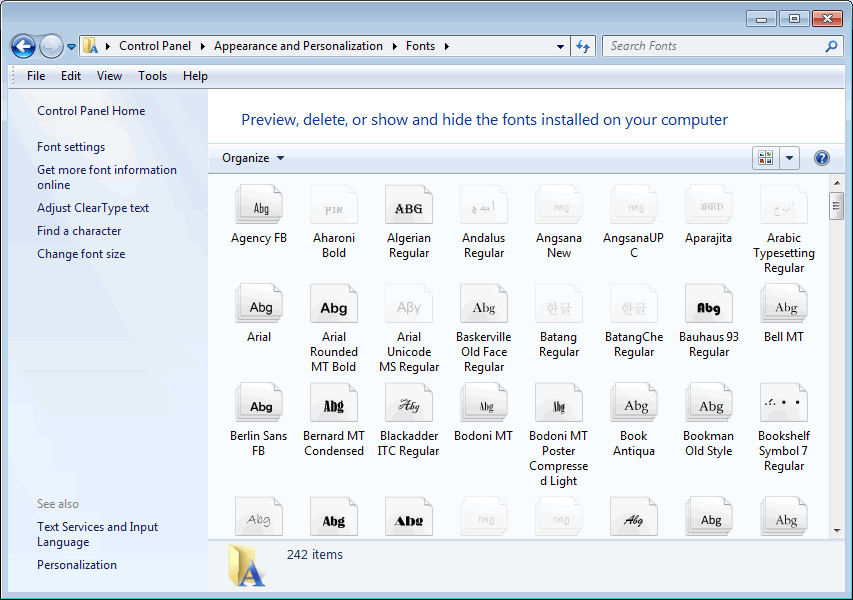
<p>Depending on how many fonts you have on your computer, the Fonts window may take some time to open. When it does, you should see a window displaying a gallery of all your fonts.</p>
<div id="attachment_104" class="wp-caption aligncenter" style="width: 310px"><a href="http://www.onescrappysite.com/wp-content/uploads/2010/11/font-gallery-in-windows-7.gif"><img class="size-medium wp-image-104" title="Font Gallery In Windows 7" src="http://www.onescrappysite.com/wp-content/uploads/2010/11/font-gallery-in-windows-7-300x211.gif" alt="Font Gallery In Windows 7" width="300" height="211" /></a><p class="wp-caption-text">Click to enlarge</p></div>
<p>On this window you can change the size of the thumbnail images or even change the display to be a list of font names without a preview image of the font. I find that the best view of the Fonts window to be Medium Icons: viewing icons is good because you get to see what each one looks like, and the medium size is small enough to be able to display more fonts.</p>
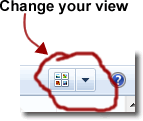
<p>You can change your view by clicking on the icon in the top right of the Font window.</p>
<p><a href="http://www.onescrappysite.com/wp-content/uploads/2010/11/change-your-view.gif"><img class="aligncenter size-full wp-image-106" title="Change Your View In Windows 7" src="http://www.onescrappysite.com/wp-content/uploads/2010/11/change-your-view.gif" alt="Change Your View In Windows 7" width="143" height="121" /></a></p>
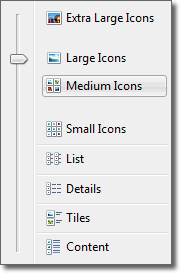
<p>Actually there are two buttons there. The one on the left steps through each view in turn, whereas the one on the right allows you to select one from all the views available:</p>
<p><a href="http://www.onescrappysite.com/wp-content/uploads/2010/11/select-a-view-in-windows-7.gif"><img class="aligncenter size-full wp-image-107" title="Select A View In Windows 7" src="http://www.onescrappysite.com/wp-content/uploads/2010/11/select-a-view-in-windows-7.gif" alt="Select A View In Windows 7" width="180" height="273" /></a></p>
<p>Using the button on the right is usually quicker as you don&#8217;t have to spend time cycling through all the options you aren&#8217;t interested in.</p>
]]></content:encoded>
			<wfw:commentRss>http://www.onescrappysite.com/what-fonts-have-i-got-on-my-computer/feed/</wfw:commentRss>
		<slash:comments>0</slash:comments>
		</item>
		<item>
		<title>Font FAQ</title>
		<link>http://www.onescrappysite.com/font-faq/</link>
		<comments>http://www.onescrappysite.com/font-faq/#comments</comments>
		<pubDate>Sun, 07 Nov 2010 16:26:46 +0000</pubDate>
		<dc:creator>admin</dc:creator>
				<category><![CDATA[Tips and Guides]]></category>
		<category><![CDATA[fonts]]></category>

		<guid isPermaLink="false">http://www.onescrappysite.com/?p=99</guid>
		<description><![CDATA[We often find that the same questions keep getting asked regarding fonts. People tend to stumble over the same old problems, so we put together a font FAQ. Here it is:]]></description>
			<content:encoded><![CDATA[<p>We often find that the same questions keep getting asked regarding fonts. People tend to stumble over the same old problems, so we put together a font FAQ. Here it is:</p>
<h2>Font Frequently Asked Questions</h2>
<ul>
<li><a href="../what-fonts-have-i-got-on-my-computer/">What fonts do I have on my computer</a>?</li>
<li><a href="http://www.onescrappysite.com/font-tutorial/">How do I install a font on my computer</a>?</li>
<li>When I download fonts I only get &#8220;The quick brown fox jumps over the lazy dog.&#8221;</li>
<li>Is printer ink safe to use in my scrapbooks?</li>
<li>How do you use a wingding font?</li>
<li>How do I get the fonts on to my page?</li>
<li>How can I print a sample of a font?</li>
<li>How can I recolor a font so it isn&#8217;t just black?</li>
<li>How do I manage my growing font collection?</li>
<li>Are there any fonts I should NOT delete?</li>
<li>How do I reverse a font to print and cut out?</li>
</ul>
]]></content:encoded>
			<wfw:commentRss>http://www.onescrappysite.com/font-faq/feed/</wfw:commentRss>
		<slash:comments>0</slash:comments>
		</item>
		<item>
		<title>Font Tutorial</title>
		<link>http://www.onescrappysite.com/font-tutorial/</link>
		<comments>http://www.onescrappysite.com/font-tutorial/#comments</comments>
		<pubDate>Sun, 07 Nov 2010 14:46:56 +0000</pubDate>
		<dc:creator>admin</dc:creator>
				<category><![CDATA[Tips and Guides]]></category>
		<category><![CDATA[fonts]]></category>

		<guid isPermaLink="false">http://www.onescrappysite.com/?p=86</guid>
		<description><![CDATA[There are millions of fonts available to download on the internet, many for free and some you have to pay for. But lots of people are confused about downloading and installing fonts on their computers, so we put this font tutorial together to help you.]]></description>
			<content:encoded><![CDATA[<p>There are millions of fonts available to download on the internet, many for free and some you have to pay for. But lots of people are confused about downloading and installing fonts on their computers, so we put this font tutorial together to help you.</p>
<p>This tutorial uses Windows 7, but you&#8217;ll find that the process will be pretty much the same whatever Windows operating system you&#8217;re using.</p>
<h2>Create A Font Folder</h2>
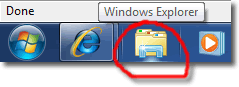
<p>It&#8217;s a good idea to create a new folder to keep all the fonts you download, just to help with your organisation. In previous versions of Windows you had to right click on the Start button to open Windows Explorer but Windows 7 makes it easy by providing a Windows Explorer button on the taskbar at the bottom of the screen.</p>
<p style="text-align: center;"><a href="http://www.onescrappysite.com/wp-content/uploads/2010/11/windows-explorer.gif"><img class="size-full wp-image-87 aligncenter" title="Windows Explorer" src="http://www.onescrappysite.com/wp-content/uploads/2010/11/windows-explorer.gif" alt="Windows Explorer" width="239" height="87" /></a></p>
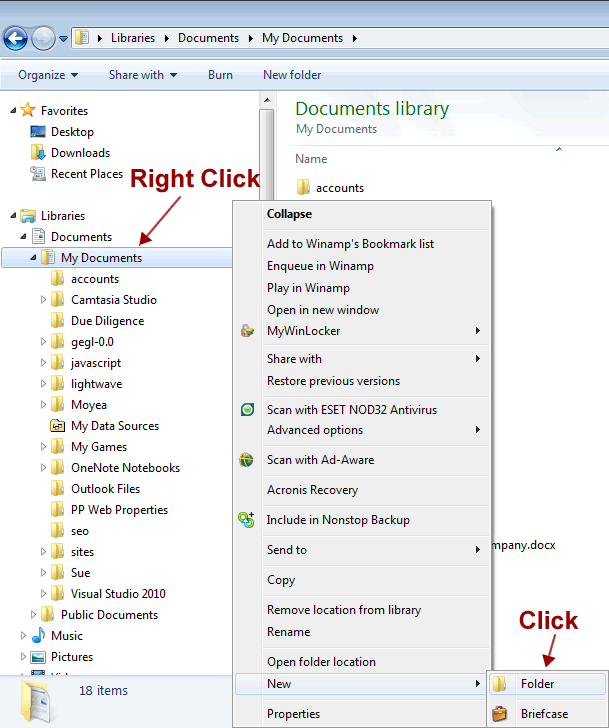
<p>Now you need to navigate to a location on your hard drive where you want to create the new folder. I would put it somewhere like <em>My Documents</em> and call in &#8220;Fonts&#8221;.</p>
<div id="attachment_88" class="wp-caption aligncenter" style="width: 260px"><a href="http://www.onescrappysite.com/wp-content/uploads/2010/11/create-new-folder.gif"><img class="size-medium wp-image-88" title="Create New Folder" src="http://www.onescrappysite.com/wp-content/uploads/2010/11/create-new-folder-250x300.gif" alt="Create New Folder" width="250" height="300" /></a><p class="wp-caption-text">Click to enlarge</p></div>
<p>Once the Fonts folder has been created, you can download any fonts you want to use into that folder.</p>
<h2>How To Download Fonts</h2>
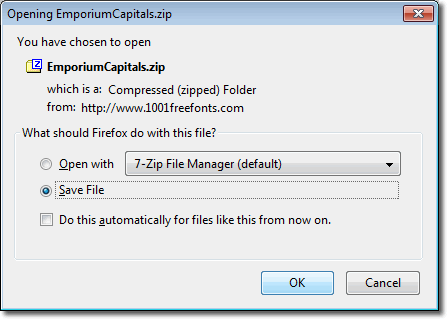
<p>Let&#8217;s imagine that we&#8217;ve found a font we want to use. How do we get it onto our computer? For example, suppose we want to use the Emporium Capitals font on <a href="http://www.1001freefonts.com/gothic-fonts.php">this page</a>. Click on <em>Windows Download</em> button, ensure that <em>Save File</em> is selected on the <em>Opening File</em> window and then click OK.</p>
<p><a href="http://www.onescrappysite.com/wp-content/uploads/2010/11/saving-fonts.gif"><img class="aligncenter size-full wp-image-89" title="Saving Fonts In Windows 7" src="http://www.onescrappysite.com/wp-content/uploads/2010/11/saving-fonts.gif" alt="Saving Fonts In Windows 7" width="447" height="319" /></a></p>
<p>You now need to specify where on your computer you want to save the font, so navigate to the Fonts folder you just created and click <em>Save</em>. In this case, the Emporium Capitals font comes in .zip format. This is just a format that reduces the file&#8217;s size, and so takes less time to download. Don&#8217;t worry about the definition, the important thing to know is that in Windows 7, all we need to do to get our hands on the font is to double click on the .zip file.</p>
<p>In previous versions of Windows you needed another program like Winzip or 7zip to open zipped up files, but Windows 7 can do it all on its own!</p>
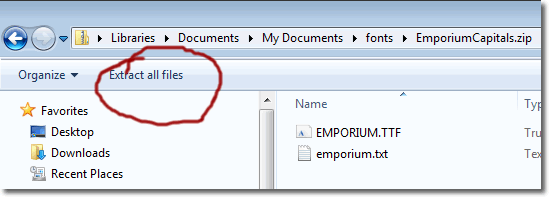
<p>So, find the font file in Windows Explorer and double click on it. You should then see the window below:</p>
<p><a href="http://www.onescrappysite.com/wp-content/uploads/2010/11/extract-all-files.gif"><img class="aligncenter size-full wp-image-91" title="Extract All Files In Windows 7" src="http://www.onescrappysite.com/wp-content/uploads/2010/11/extract-all-files.gif" alt="Extract All Files In Windows 7" width="549" height="197" /></a></p>
<p>Here, we need to click on <em>Extract all files</em>. The Windows file extractor will default in the location where the .zip file is found, and that is fine. Click <em>Extract</em> and you will find a new folder called EmporiumCapitals with the font inside it. The font is called EMPORIUM.TTF.</p>
<p>Although we now have the font on our computer, we still have another step to perform before we can use it. We need to install the font.</p>
<h2>Installing A Font In Windows 7</h2>
<p>Installing a font in Windows 7 is very easy. Right click on the font file and select Properties. If you can see an <em>Unblock</em> button at the bottom of the window, click it. If you don&#8217;t see an Unblock button, proceed to the next step. Right click on the font file and select Install.</p>
<p>All done! The font is now ready for use.</p>
]]></content:encoded>
			<wfw:commentRss>http://www.onescrappysite.com/font-tutorial/feed/</wfw:commentRss>
		<slash:comments>0</slash:comments>
		</item>
		<item>
		<title>Beginning Scrapbooking</title>
		<link>http://www.onescrappysite.com/beginning-scrapbooking/</link>
		<comments>http://www.onescrappysite.com/beginning-scrapbooking/#comments</comments>
		<pubDate>Sun, 31 Oct 2010 16:00:57 +0000</pubDate>
		<dc:creator>admin</dc:creator>
				<category><![CDATA[Tips and Guides]]></category>
		<category><![CDATA[begining]]></category>

		<guid isPermaLink="false">http://www.onescrappysite.com/?p=83</guid>
		<description><![CDATA[
Consider this your first lesson in scrapbooking. With this collection of guides I hope to help all the scrapbooking "newbies" to grow and thrive at this craft, and to help you nurture and develop your creative inspitration. In the first lesson, we're going to look at some of the buzzwords, common terminolgy, tools and technques used in scrapbooking. After lesson 1, you will feel more comfortable about how to put together a layout, and how to protect your photos and memorabilia using photo-safe and archival products in a creative way.]]></description>
			<content:encoded><![CDATA[<p>I&#8217;m addicted to scrapbooking and will gleefully help addict anyone else who will listen! Scrapbooking is just a fabulous craft.</p>
<p>Consider this your first lesson in scrapbooking. With this collection of guides I hope to help all the scrapbooking &#8220;newbies&#8221; to grow and thrive at this craft, and to help you nurture and develop your creative inspitration. In the first lesson, we&#8217;re going to look at some of the buzzwords, common terminolgy, tools and technques used in scrapbooking. After lesson 1, you will feel more comfortable about how to put together a layout, and how to protect your photos and memorabilia using photo-safe and archival products in a creative way.</p>
<p>I&#8217;ll first of all begin by telling you a little bit about my own scrapping history. At this point I&#8217;ve been scrapbooking for 4 years and have completed 6 family albums, 8 holiday albums, 2 wedding albums, 4 ABC books, and 4 gift albums for my grandmothers. And I&#8217;m creating new themes all the time! It&#8217;s the fact that I&#8217;m completely HOOKED on scrapbooking that keeps inspiring me with new ideas. Scrapbooking is a craft that combines everything that is important to me. I was already filling hard drives with digital phots of my kids, but because I wanted something physical I&#8217;d print them off and put them in photo albums.</p>
<p>It was only when I saw a friend’s scrapbook that I realized what a wonderfully creative form this was for my pictures and everything that went with those pictures. Now all our trips and holidays are documented and I have my daughter’s cute sayings immortalised in my ABC book.</p>
<p>Scrapbooks are a way to put the backgroun to the pictures, and are so much more than the who, what, where, why and when. They are a great way to record family traditions, the many funny incidents of childhood, favourite things, achievements&#8230;all the things that come together to paint a portrait of our lives. </p>
<p>They are also an excuse to use all these great toys!! So with that said, let’s get to scrapping!</p>
]]></content:encoded>
			<wfw:commentRss>http://www.onescrappysite.com/beginning-scrapbooking/feed/</wfw:commentRss>
		<slash:comments>0</slash:comments>
		</item>
		<item>
		<title>Reverse Text In Microsoft Word</title>
		<link>http://www.onescrappysite.com/reverse-text-in-microsoft-word/</link>
		<comments>http://www.onescrappysite.com/reverse-text-in-microsoft-word/#comments</comments>
		<pubDate>Sun, 05 Sep 2010 12:17:56 +0000</pubDate>
		<dc:creator>admin</dc:creator>
				<category><![CDATA[Tips and Guides]]></category>
		<category><![CDATA[microsoft word]]></category>

		<guid isPermaLink="false">http://www.onescrappysite.com/?p=76</guid>
		<description><![CDATA[Reversing text in Microsoft Word is very easy, thanks to WordArt.

Click Insert > Text > WordArt, and select a style.]]></description>
			<content:encoded><![CDATA[<p>Reversing text in Microsoft Word is very easy, thanks to WordArt.</p>
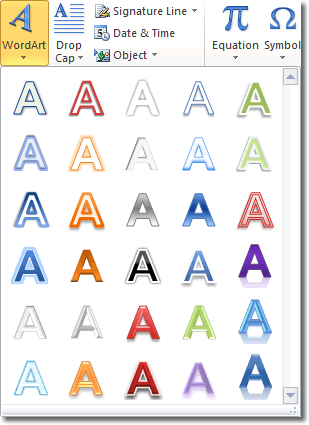
<p>Click Insert &gt; Text &gt; WordArt, and select a style.</p>
<p style="text-align: center;"><a href="http://www.onescrappysite.com/wp-content/uploads/2010/09/insert-wordart.gif"><img class="size-full wp-image-77 aligncenter" title="Insert WordArt" src="http://www.onescrappysite.com/wp-content/uploads/2010/09/insert-wordart.gif" alt="Insert WordArt" width="309" height="425" /></a></p>
<p>Start typing out your text and once finished, click Srawing Tools &gt; Format &gt; Arrange &gt; Rotate &gt; Flip Horizontal.</p>
]]></content:encoded>
			<wfw:commentRss>http://www.onescrappysite.com/reverse-text-in-microsoft-word/feed/</wfw:commentRss>
		<slash:comments>0</slash:comments>
		</item>
		<item>
		<title>Reversing Text In Print Artist</title>
		<link>http://www.onescrappysite.com/reversing-text-in-print-artist/</link>
		<comments>http://www.onescrappysite.com/reversing-text-in-print-artist/#comments</comments>
		<pubDate>Sun, 05 Sep 2010 11:44:13 +0000</pubDate>
		<dc:creator>admin</dc:creator>
				<category><![CDATA[Tips and Guides]]></category>
		<category><![CDATA[reverse text]]></category>

		<guid isPermaLink="false">http://www.onescrappysite.com/?p=73</guid>
		<description><![CDATA[For all those scrapbookers stuck in the Middle Ages who use Print Artist 6.0 (made by Sierra Home), here are some handy instructions for reversing the text you type. ]]></description>
			<content:encoded><![CDATA[<p>Reversing text is a good technique to use to spice up your titles.</p>
<p>For all those scrapbookers stuck in the Middle Ages who use Print Artist 6.0 (made by Sierra Home), here are some handy instructions for reversing the text you type.</p>
<ul>
<li>Type out your text</li>
<li>Make the necessary adjustments to font, colour, size etc</li>
<li>Under the <em>Colour</em> menu, select <em>reversed</em></li>
<li>Doing this removes the colour and turns the text into an outline</li>
<li>Under the <em>Effects</em> menu select <em>flipped</em></li>
</ul>
]]></content:encoded>
			<wfw:commentRss>http://www.onescrappysite.com/reversing-text-in-print-artist/feed/</wfw:commentRss>
		<slash:comments>0</slash:comments>
		</item>
		<item>
		<title>Reverse Printing</title>
		<link>http://www.onescrappysite.com/reverse-printing/</link>
		<comments>http://www.onescrappysite.com/reverse-printing/#comments</comments>
		<pubDate>Sun, 05 Sep 2010 11:30:33 +0000</pubDate>
		<dc:creator>admin</dc:creator>
				<category><![CDATA[Tips and Guides]]></category>
		<category><![CDATA[text]]></category>

		<guid isPermaLink="false">http://www.onescrappysite.com/?p=70</guid>
		<description><![CDATA[Many scrapbookers love using different fonts for their page titles. All you have to do is create the text in the font of your choice on your computer, print it out, trim it to size and then place it on the page.

But did you know that you can also reverse the text so that it displays backwards? You can then print it onto cardstock and you have a mirror image of your title.]]></description>
			<content:encoded><![CDATA[<p>Many scrapbookers love using different fonts for their page titles. All you have to do is create the text in the font of your choice on your computer, print it out, trim it to size and then place it on the page.</p>
<p>But did you know that you can also reverse the text so that it displays backwards? You can then print it onto cardstock and you have a mirror image of your title.</p>
<p>I&#8217;ve listed here the methods you can use to get reversed text in the various popular computer programs.</p>
<p>Reverse text using:</p>
<ul>
<li><a href="http://www.onescrappysite.com/reversing-text-in-print-artist/">Print Artist</a></li>
<li>Microsoft Publisher</li>
<li>Microsoft Word</li>
</ul>
]]></content:encoded>
			<wfw:commentRss>http://www.onescrappysite.com/reverse-printing/feed/</wfw:commentRss>
		<slash:comments>0</slash:comments>
		</item>
		<item>
		<title>Old Fonts</title>
		<link>http://www.onescrappysite.com/old-fonts/</link>
		<comments>http://www.onescrappysite.com/old-fonts/#comments</comments>
		<pubDate>Sat, 04 Sep 2010 14:30:08 +0000</pubDate>
		<dc:creator>admin</dc:creator>
				<category><![CDATA[Scrapbooking Supplies]]></category>
		<category><![CDATA[fonts]]></category>

		<guid isPermaLink="false">http://www.onescrappysite.com/?p=62</guid>
		<description><![CDATA[To get a nice antique feel to your scrapbooks, why not consider using some of these &#8220;old&#8221; fonts? 1950s 1960s and 1970s]]></description>
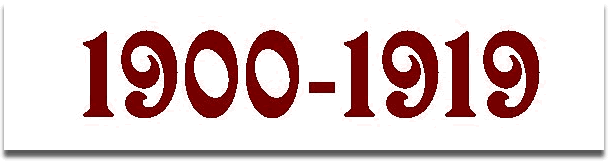
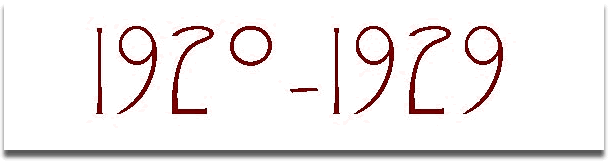
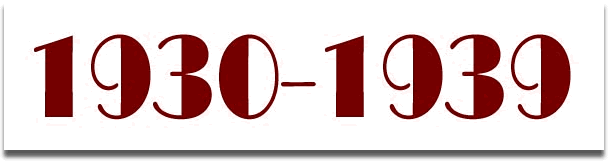
			<content:encoded><![CDATA[<p>To get a nice antique feel to your scrapbooks, why not consider using some of these &#8220;old&#8221; fonts?</p>
<div id="attachment_63" class="wp-caption alignnone" style="width: 310px"><a href="http://www.onescrappysite.com/wp-content/uploads/2010/09/1900-1919.gif"><img class="size-medium wp-image-63" title="Fonts From 1900-1919" src="http://www.onescrappysite.com/wp-content/uploads/2010/09/1900-1919-300x79.gif" alt="Fonts From 1900-1919" width="300" height="79" /></a><p class="wp-caption-text">See these fonts!</p></div>
<div id="attachment_64" class="wp-caption alignnone" style="width: 310px"><a href="http://www.onescrappysite.com/wp-content/uploads/2010/09/1920-1929.gif"><img class="size-medium wp-image-64" title="Fonts From 1920-1929" src="http://www.onescrappysite.com/wp-content/uploads/2010/09/1920-1929-300x79.gif" alt="Fonts From 1920-1929" width="300" height="79" /></a><p class="wp-caption-text">See these fonts!</p></div>
<div id="attachment_65" class="wp-caption alignnone" style="width: 310px"><a href="http://www.onescrappysite.com/wp-content/uploads/2010/09/1930-1939.gif"><img class="size-medium wp-image-65" title="Fonts From 1930-1939" src="http://www.onescrappysite.com/wp-content/uploads/2010/09/1930-1939-300x79.gif" alt="Fonts From 1930-1939" width="300" height="79" /></a><p class="wp-caption-text">See these fonts!</p></div>
<div id="attachment_66" class="wp-caption alignnone" style="width: 310px"><a href="http://www.onescrappysite.com/wp-content/uploads/2010/09/1940-1949.gif"><img class="size-medium wp-image-66" title="Fonts From 1940-1949" src="http://www.onescrappysite.com/wp-content/uploads/2010/09/1940-1949-300x79.gif" alt="Fonts From 1940-1949" width="300" height="79" /></a><p class="wp-caption-text">See these fonts!</p></div>
<ul>
<li>1950s</li>
<li>1960s and 1970s</li>
</ul>
]]></content:encoded>
			<wfw:commentRss>http://www.onescrappysite.com/old-fonts/feed/</wfw:commentRss>
		<slash:comments>0</slash:comments>
		</item>
		<item>
		<title>Font Resources</title>
		<link>http://www.onescrappysite.com/font-resources/</link>
		<comments>http://www.onescrappysite.com/font-resources/#comments</comments>
		<pubDate>Sat, 04 Sep 2010 14:11:31 +0000</pubDate>
		<dc:creator>admin</dc:creator>
				<category><![CDATA[Scrapbooking Supplies]]></category>
		<category><![CDATA[fonts]]></category>

		<guid isPermaLink="false">http://www.onescrappysite.com/?p=6</guid>
		<description><![CDATA[There are boatloads of free fonts available on the internet. Some are better than others... Check out some of the free fonts I've downloaded in the past.]]></description>
			<content:encoded><![CDATA[<p>There are boatloads of free fonts available on the internet. Some are better than others&#8230; Check out some of the free fonts I&#8217;ve downloaded in the past.<br />
<a href="http://www.itcfonts.com">itc fonts</a><br />
<a href="http://www.itcfonts.com">ITCfonts.com &#8211; Download over 1,000 PostScript and TrueType Fonts!</a><br />
<a href="http://www.fontaddict.com/" target="new"></a><a href="http://www.fontempire.com/" target="new">Font       Empire</a><br />
<a href="http://www.clipart.com/">ClipArt</a></p>
<h2>True-Type       Resource</h2>
<p><a href="http://www.fontgarden.com/index.html" target="new">Font Garden</a><br />
<a href="http://cooltext.com/Fonts" target="_blank">Fonts</a><br />
<a href="http://www.pizzadude.dk/home.php" target="new">Pizza       Dude</a><br />
<a href="http://www.houseoflime.com/" target="_blank">House       of Lime</a><br />
<a href="http://www.gracefulbee.com/">how       to print directly on to diecuts</a></p>
<h2>Mac Users</h2>
<p><a href="http://www.bvfonts.com/" target="_blank">Blue       Vinyl fonts</a><br />
<a href="http://www.blambot.com/" target="new">Blambot       (comic book) fonts</a><br />
<a href="http://www.webcon.net.au/ozscrappin/page_headers.html" target="new">Oz       Scrappin</a><br />
<a href="http://www.letteringdelights.com/" target="new">Lettering       Delights</a></p>
]]></content:encoded>
			<wfw:commentRss>http://www.onescrappysite.com/font-resources/feed/</wfw:commentRss>
		<slash:comments>0</slash:comments>
		</item>
	</channel>
</rss>